Connect your AI to Ohmy

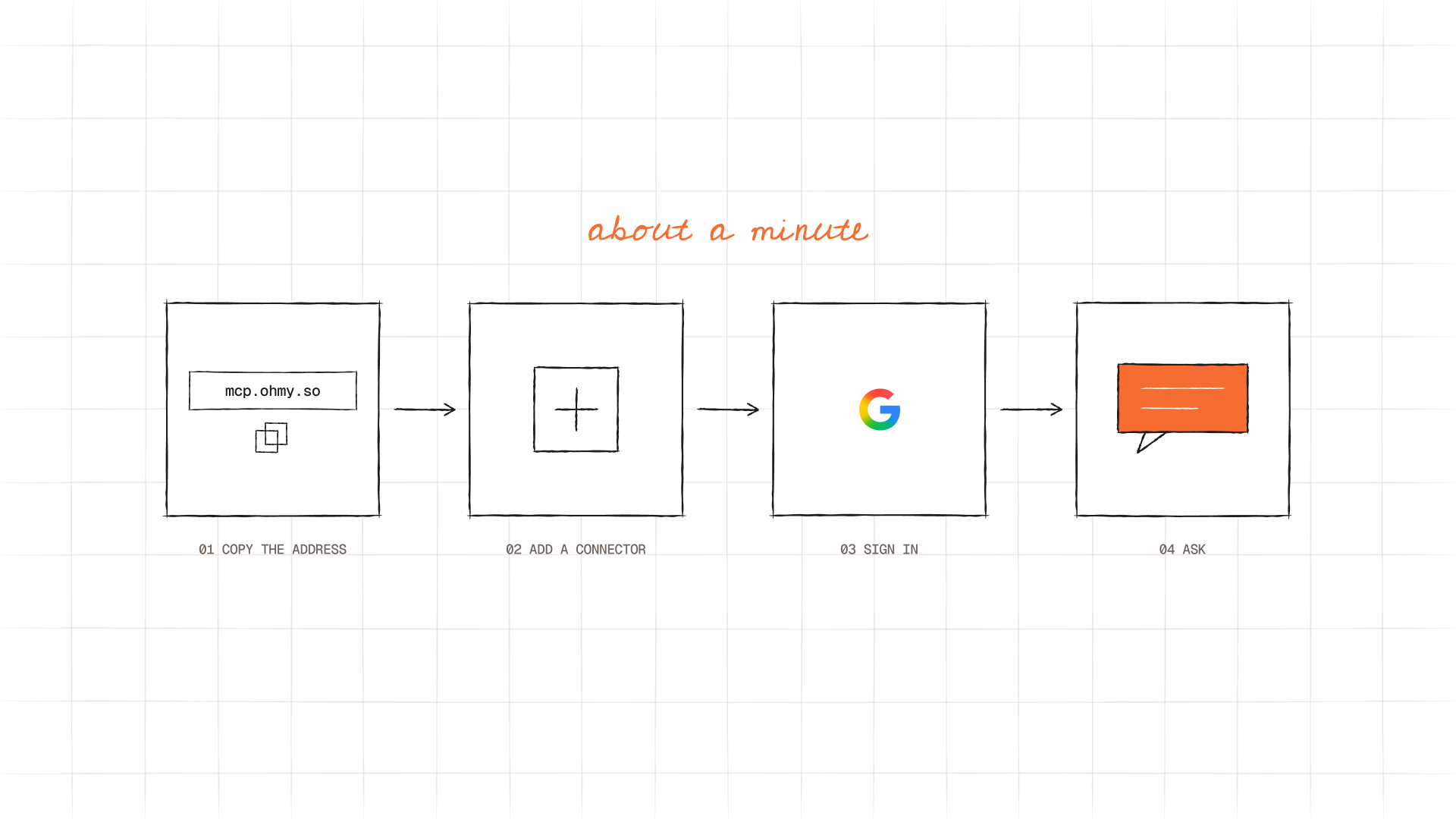
Want your AI to know your strategy, brand and work with Ohmy? Connect Claude, ChatGPT or another AI app to Ohmy MCP in about a minute.
Intro
What Ohmy MCP is
Ohmy MCP connects the AI app you already use to your company’s space on Ohmy. Once it’s on, your AI can read your strategy, brand, documents and work with Ohmy, and answer in your colors, fonts and voice. No copying and pasting context into every chat.
What you need
- An Ohmy account. If someone invited you to your company’s space, you have one.
- An AI app that supports custom connectors (MCP): Claude, ChatGPT on a paid plan, or an app like Cursor or Claude Code.
- About a minute.
How to use this guide: copy the address in Step 1, then follow the steps for your app in Step 2. Skip the apps you don’t use.
Step 1: Copy the server address
This is the only address you need, for every app:
https://mcp.ohmy.soYou’ll also find it in Ohmy: open your account menu and choose Ohmy MCP. The page has a Copy button and the same steps as this guide.
Step 2: Add Ohmy to your AI app
Claude
- In Claude, open Settings › Connectors. It works on the web and in the desktop app.
- Choose Add custom connector. Name it Ohmy and paste the address.
- Choose Connect, sign in with the Google account you use for Ohmy, then allow access.
- In a chat, open the tools menu, turn Ohmy on, and ask.
On a Claude Team or Enterprise plan, the plan’s owner adds Ohmy once for everyone. If that’s done, start at step 3.
ChatGPT
- In ChatGPT on the web, turn on Settings › Apps › Advanced settings › Developer mode. It needs a paid plan.
- Choose Create (or “Add custom MCP server”), name it Ohmy, paste the address and pick OAuth.
- Sign in with the Google account you use for Ohmy, then allow access.
- In a new chat, add Ohmy from the + menu, then ask.
Other apps
Any app that supports remote MCP servers works the same way: add a server with the address above. It uses Streamable HTTP and asks you to sign in (OAuth).
Claude Code:
claude mcp add --transport http ohmy https://mcp.ohmy.soCursor and other apps with an mcp.json file:
{"mcpServers":{"ohmy":{"url":"https://mcp.ohmy.so"}}}Menu names in these apps change from time to time. If a step looks different, look for “connectors”, “MCP” or “integrations” in the app’s settings.
Step 3: Try it
Start a new chat with Ohmy turned on and ask something about your company. A few ideas (replace the company name with yours):
What is Ohmy working on for our company this week?Sum up our marketing strategy in five points.Write an Instagram post about our newest product in our brand voice.After the setup
What your AI can do with Ohmy
- Read your strategy, brand and documents.
- Write in your colors, fonts and voice.
- Tell you where each piece of work stands.
- Check how your website is doing.
- Remember what you tell it, in your company’s memory.
- Send requests to Ohmy. Directors and Managers can also approve work.
“What can it see?”
Only what your company shares with Ohmy. It never sees Ohmy’s internal notes or any other company’s information. You sign in with your own Google account, so it sees exactly what you can see in Ohmy, nothing more.
Something doesn’t work?
Email us at hello@meetohmy.com with the app you use and what you see. A human will reply.

You might also like

Get started with Ohmy
