Get started with Ohmy

New to Ohmy? Sign in with Google, find your strategy, brand, work and website in one place, and invite your team in about five minutes.
Intro
What your Ohmy space is
Your company has its own space on Ohmy. It’s where you see everything we do together: your strategy, brand, work and website, in one place. When something is ready for you, it shows up there, and you can approve it or ask for changes.
Who it’s for
Anyone at your company who works with Ohmy: founders, marketing leads, marketers, designers and sales. Each person signs in with their own account.
How to use this guide: do the three steps in order. It takes about five minutes.
Step 1: Sign in
- Open ohmy-app.pages.dev.
- Choose Continue with Google and pick the email address your invitation went to.
Only that address opens your space, so use the same Google account every time.
“I can’t sign in”
Check that you picked the address from your invitation. If it still doesn’t open, ask the person who invited you, or email us at hello@meetohmy.com.
Step 2: Find your way around
Your company’s sections are in the sidebar, under your logo. Each one has one job:
- Home: what’s ready for you, your contact at Ohmy and the latest updates.
- Work: every piece of work, grouped as Ready for you, In progress, Planned and Done. Open an item to see what it is, then approve it or ask for changes.
- Strategy: your strategy documents, with a “Start here” document first.
- Brand: your brand book, colors and brand documents, once your brand is ready.
- Website: how your website is doing: security, search and links.
- CEREBRUM: your company’s memory, what Ohmy and your AI know about your business.
Your account menu holds Ohmy MCP (connect your AI app), Settings (your team) and the language switch (English or Russian).
How do I ask for something?
Your contact at Ohmy is at the bottom of the sidebar. Click their name to open a WhatsApp chat with them, or use New request. Tell us what you need in your own words.
Step 3: Finish the Get started checklist
The Get started card in the sidebar ticks itself off as you go:
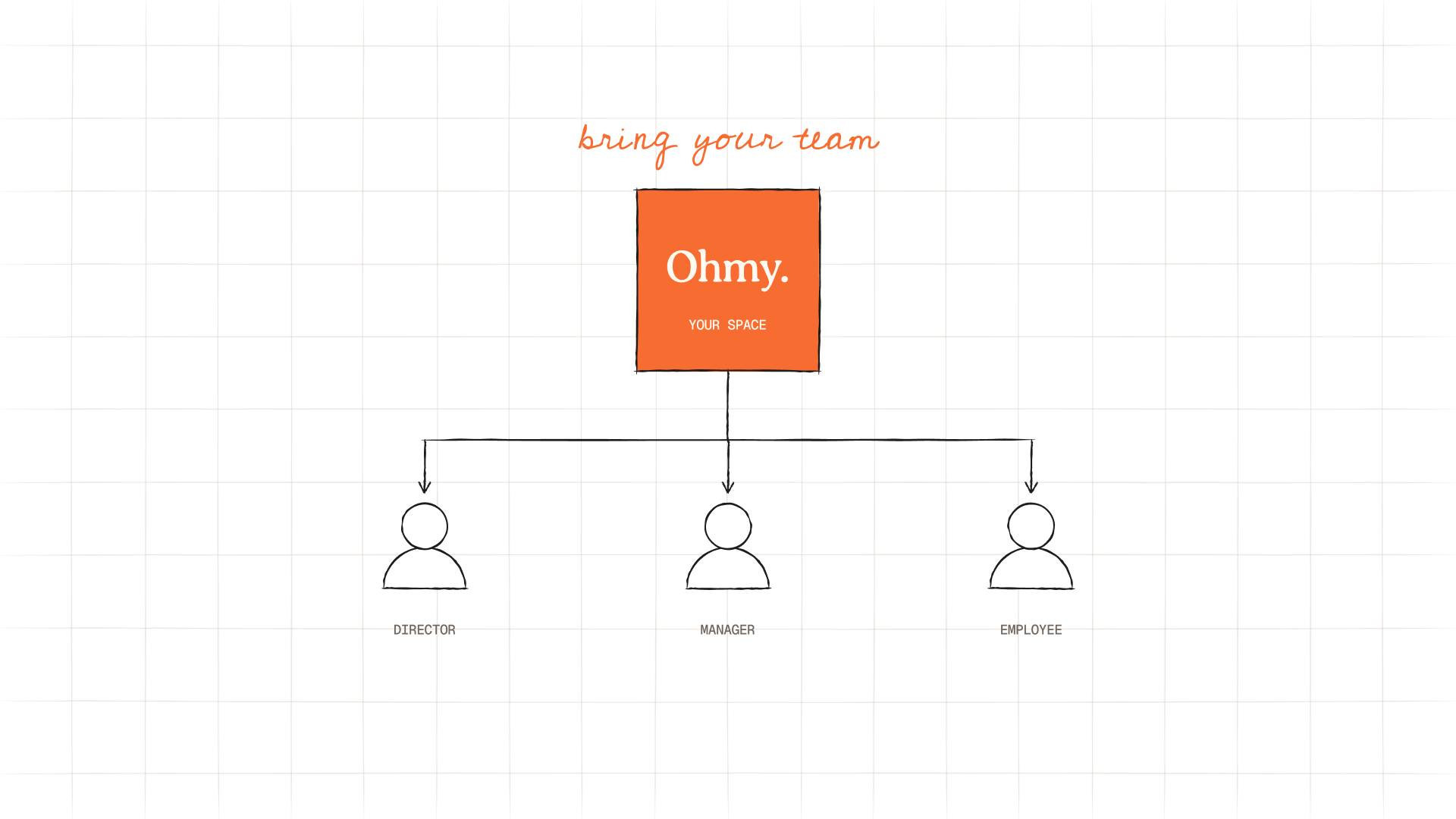
- Invite your team (Directors and Managers): open Settings, invite people by email and pick their position. Ohmy doesn’t send emails for you, so the invitation appears as a ready message you copy and send yourself.
- Connect your AI app: connect Claude, ChatGPT or another AI app so it knows your company. Follow Connect your AI to Ohmy.
Who can do what
- Director (founder or CEO): approves work, invites and removes people (except other Directors), sends requests.
- Manager (for example, head of marketing): approves work, invites Employees, sends requests.
- Employee (marketer, designer, sales): sees everything but Settings, sends requests and uses their AI.
After the setup
What happens next
As we work, new items appear in Work. When one is marked Ready for you, you’ll see it on Home too. Review it, then approve it or ask for changes.
Need help?
Email us at hello@meetohmy.com or message your contact at Ohmy. A human will reply.

You might also like

Get started with Ohmy
