Set up your brand board and brand voice in Synapse
Save your logo, colors and fonts as a brand board, and your tone as a brand voice, so every email and AI draft in Synapse looks and sounds like you.

Intro
A brand board stores your logos, colors and fonts. A brand voice stores how you talk: tone, audience and what you promise. Set them up once and Synapse reuses them, for example in the email builder and when AI writes a first draft for you.
What you need
- Your logo as a PNG or SVG with a transparent background.
- Your brand colors (hex codes, such as #FF5A1F) and font names.
- About 15 minutes.
Step 1: Create a brand board
- Go to Marketing › Brand Boards and stay on the Design Kit tab.
- Choose Add Design Kit.
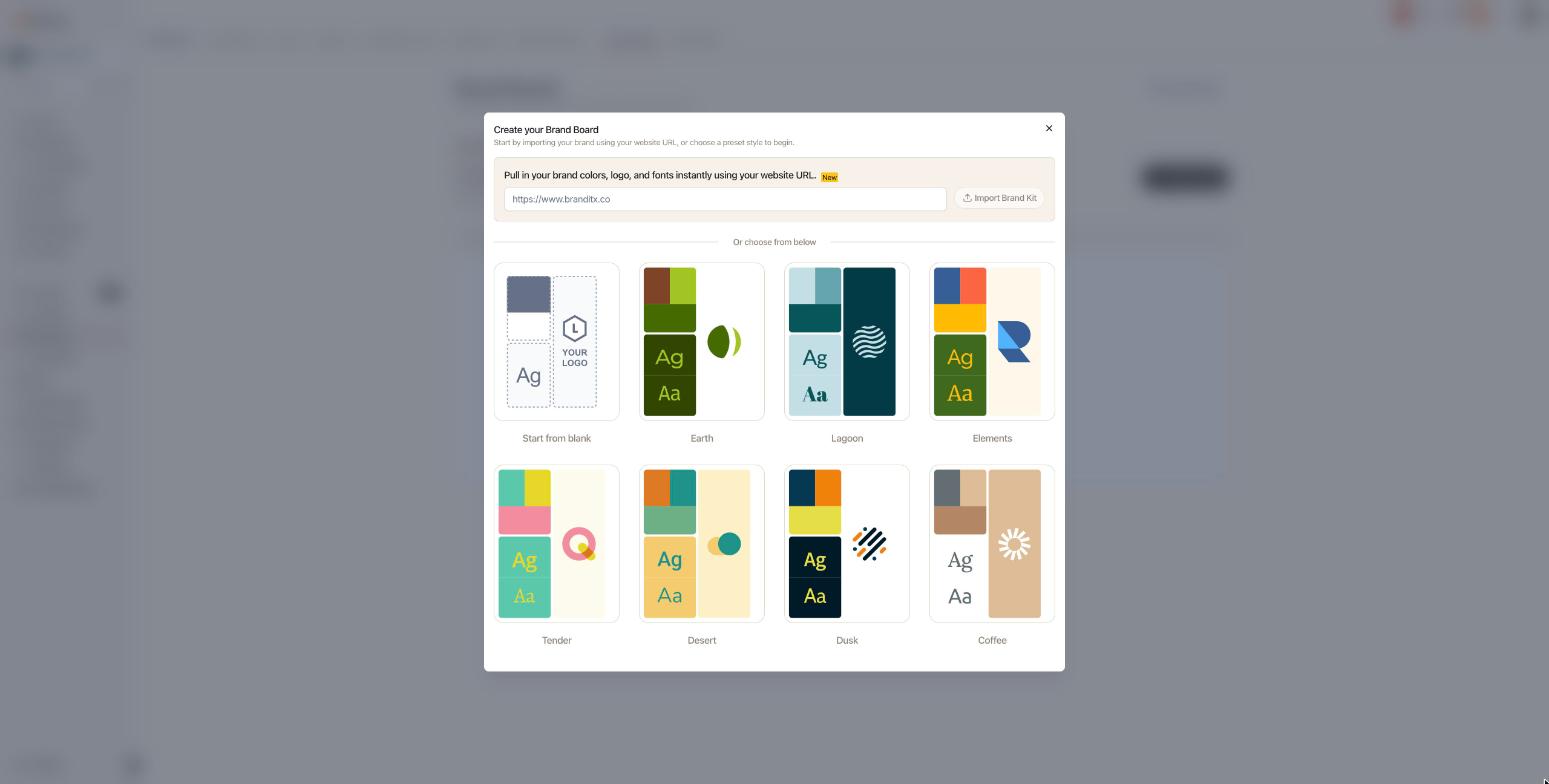
- Pick how to start:
- From your website: paste your website address and choose Import Brand Kit. Synapse pulls in your logo, colors and fonts.
- From a preset: pick a style such as Earth or Lagoon, then change it to match your brand.
- Start from blank: add everything yourself.
- Check the logo, colors and fonts, fix anything that’s off, and save.
Tip: the import reads your website as it is today. If your site uses an old logo or extra accent colors, remove them from the board so they don’t end up in your emails.
Step 2: Add your brand voice
- On Marketing › Brand Boards, open the Brand Voice tab and choose Add Brand Voice.
- Choose Start from scratch to fill it in yourself, or Text or URL to fill it from your website or a document, then edit.
- Fill in at least the required fields: Brand name, Tone of voice, Target audience and Customer pain points. The more you add (brand promise, what makes you different, call to action), the better AI drafts get.
- Turn on Set as default if this is your main voice, then choose Save Brand Voice.
For health and science brands, add what you don’t say, for example “we never promise cures or guaranteed results” or “we explain science in plain words, without hype.” AI drafts follow these rules better when they’re written down.
Several brands or locations?
You can keep more than one design kit and brand voice, for example one per clinic or product line. Mark the one you use most as the default and pick the others when you need them.
Troubleshooting
- The import picked the wrong colors or logo. Edit the board and replace them. The import is a starting point, not a final result.
- My logo looks blurry in emails. Upload a larger PNG (at least twice the size it’s shown at) or an SVG.
- My font isn’t in the list. Some email apps only show common fonts. Pick a close fallback for email, and keep your brand font for your website.
- AI drafts don’t sound like us. Check that your brand voice is set as the default, and add two or three example sentences in your own words.
Still stuck? Email hello@meetohmy.com.


