Connect your social media accounts to Synapse
Connect Facebook, Instagram, LinkedIn, TikTok, YouTube, Google Business Profile and more to Social Planner, and fix connections that stop working.

Intro
Social Planner publishes to your social accounts for you. First, connect each account once. It takes about two minutes per network.
Supported networks
Facebook pages and groups, Instagram, LinkedIn (company pages and personal profiles), TikTok, YouTube, Pinterest, Threads, Bluesky and Google Business Profile.
What you need
- Facebook: admin access to the Facebook page. You can’t post to a personal Facebook profile.
- Instagram: a Business or Creator account. A personal account won’t connect. You can switch for free in Instagram under Settings › Account type and tools.
- LinkedIn: admin access to the company page (Super admin or Content admin).
- Google Business Profile: owner or manager access to the profile.
- TikTok and YouTube: the login for the account or channel.
Step 1: Open Social Planner
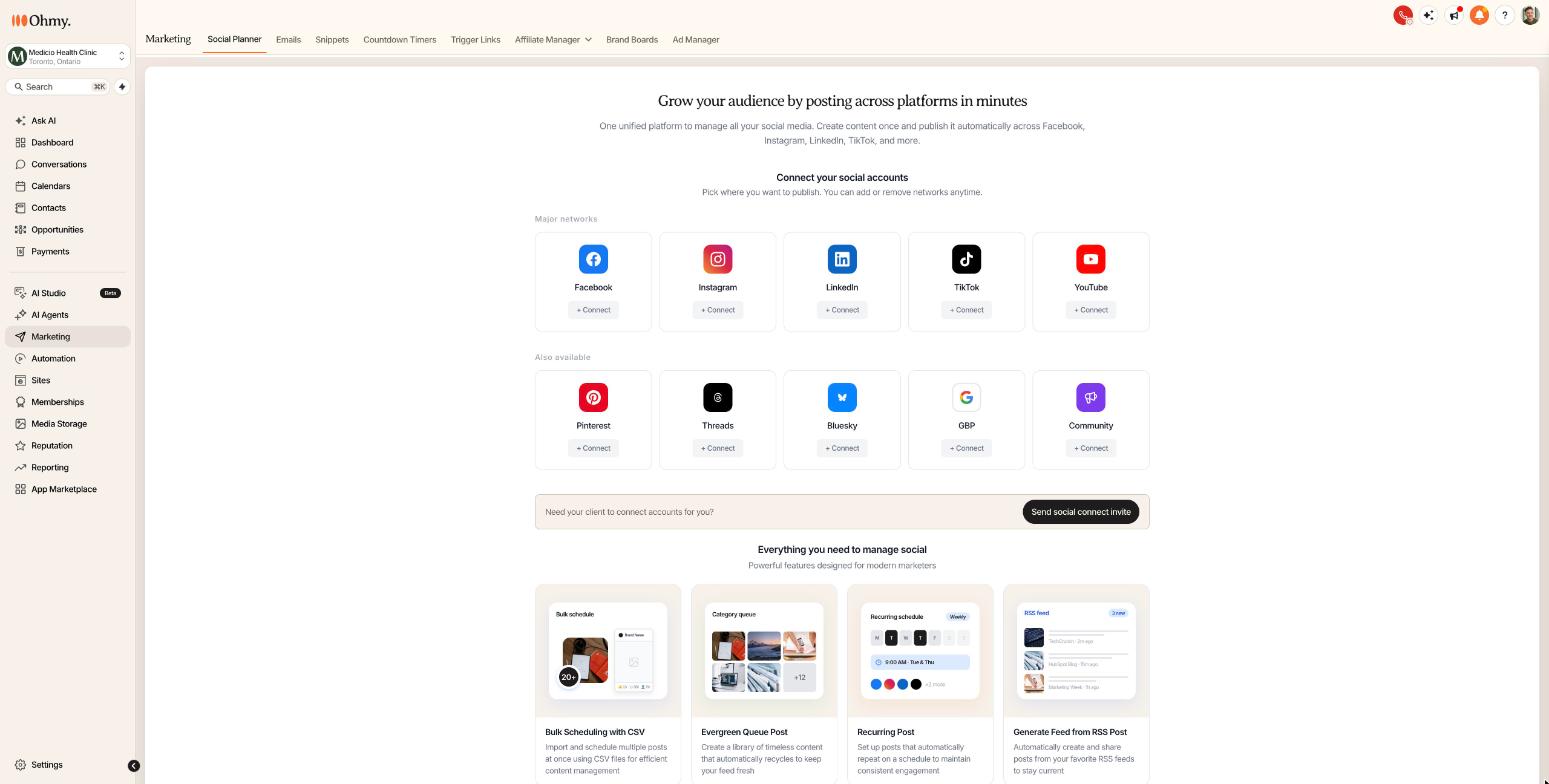
Go to Marketing › Social Planner. If nothing is connected yet, you’ll see every network with a + Connect button. Once you’ve connected one, use + Socials in the top right to add more.
Step 2: Connect an account
- Choose + Connect under the network.
- A sign-in window opens. Sign in to the network with the account that manages your page or profile.
- Allow all the permissions it asks for. If you untick one, posting or comments may not work.
- Pick the pages, profiles or locations you want in Synapse, then confirm.
The account now appears in Social Planner, ready for your first post.
Someone else manages the account?
Choose Send social connect invite. Synapse creates a secure link for that person. They open it and connect the account themselves, without needing a Synapse login or sharing their password with you.
Disconnect or switch an account
Open Social Planner › Settings to see every connected account. From there you can disconnect an account or reconnect it with a different login. Scheduled posts for a disconnected account won’t publish until you reconnect it.
Troubleshooting
- The sign-in window doesn’t open. Your browser blocked the pop-up. Allow pop-ups for synapse.ohmy.so and try again.
- My Facebook page or Instagram account isn’t in the list. You’re signed in with a Facebook profile that isn’t a page admin, or you deselected the page when Facebook asked which pages to share. Reconnect, choose Edit previous settings if Facebook offers it, and select the page.
- Instagram won’t connect. Check that it’s a Business or Creator account. If you connect through Facebook, the Instagram account must also be linked to your Facebook page.
- I see a banner that a connection expired. Networks end connections when a password changes, an admin is removed, or after a period of time. Reconnect the account from Social Planner. Use the same login that connected it the first time; a different person may not see the same pages.
- A teammate left the company. If their login connected the account, reconnect it with yours before their access is removed, or posts will stop.
Still stuck? Email hello@meetohmy.com with the network and what you see.


