Create, schedule and approve social posts in Synapse
Write one post for all your networks, preview it, send it for approval, and schedule it, repeat it or add it to a queue. Then reply to comments and track results.

Intro
In Social Planner you write a post once and publish it to every connected network, now or later. You can send it for approval first, repeat it on a schedule, or bulk upload a month of posts.
Before you start: connect at least one social account.
See your plan
Go to Marketing › Social Planner › Planner. Switch between the list and the calendar with the icons on the right, and between Month and Week. Use Filters and the account icons to show only some networks or statuses (scheduled, published, failed, waiting for approval).
Step 1: Write the post
- Choose New Post › Create New Post.
- Under Post to, pick one or more accounts. Use Create new group to save a set you post to often, for example “Clinic channels”.
- Write the post in Type content. The toolbar adds images, video, emoji, hashtags and links. AI writes or rewrites a draft using your brand voice.
- Check Post Preview on the right. Each network has its own tab, and the character limit shows above the text box.
- Fill in any network options that appear below the text. For example, Google Business Profile asks for a post type and button.
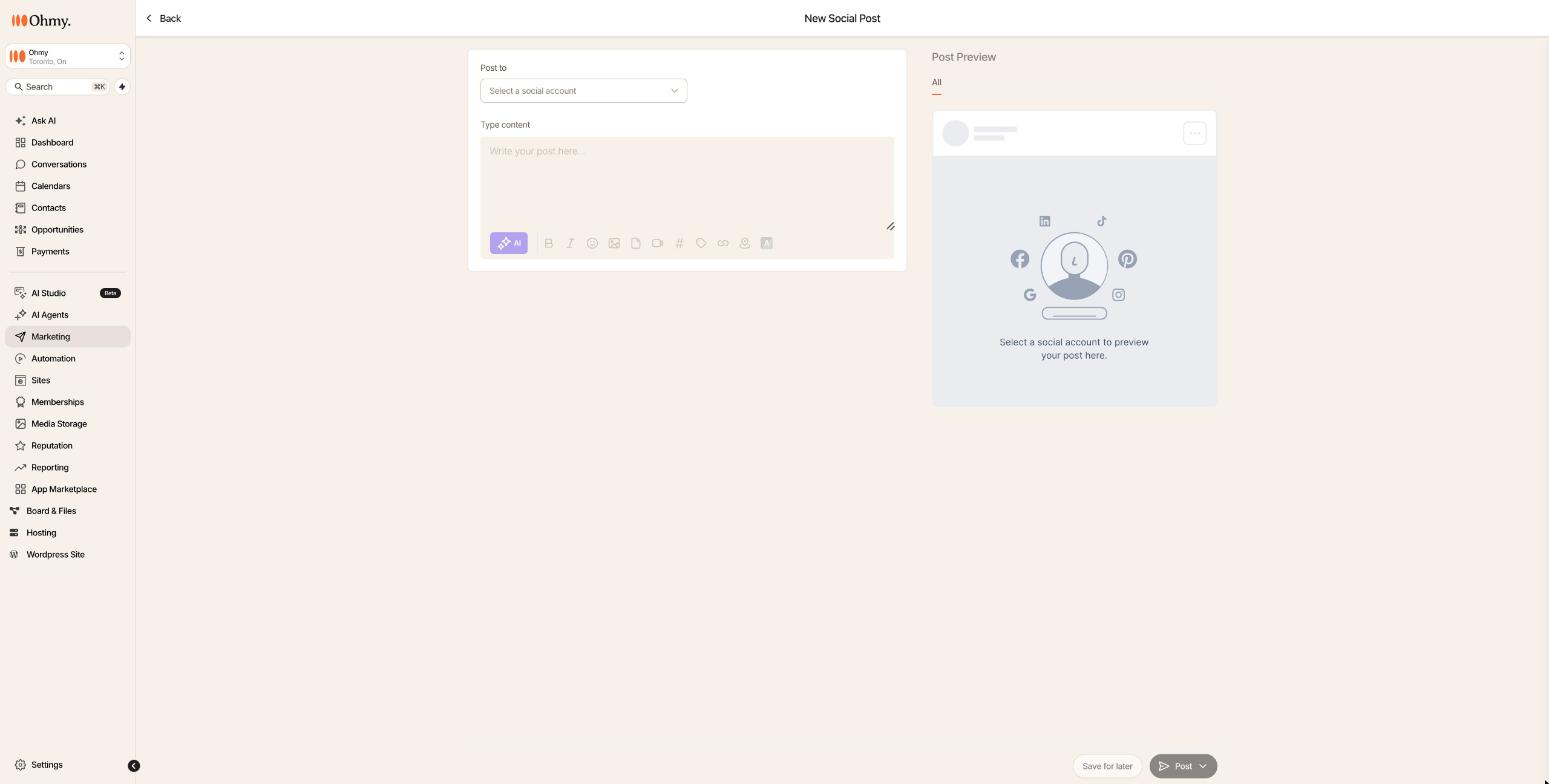
Step 2: Publish, schedule or send for approval
Open the arrow next to Post and choose:
- Post Now: publishes straight away.
- Schedule post: pick a date and time.
- Send Post for Approval: a teammate reviews it first and approves or asks for changes. Use this for anything with health or product claims.
- Schedule Recurring Posts: repeats the post, for example every Tuesday for six weeks.
- Add to Queue: adds it to a category queue (see below).
Save for later keeps it as a draft. Times use your account’s time zone, set in Settings › Business Profile.
Save time with bulk tools
The New Post menu has more options:
- Upload from CSV: plan many posts in a spreadsheet, then upload them in one go. Download the sample file from the upload screen so your columns match.
- Category queue: keep a library of evergreen posts (tips, FAQs, team intros) that Synapse publishes in turn on your chosen days and times.
- RSS Posts: share new articles from your blog automatically.
- Social Planner Templates: reuse a post format you like.
After you publish
- Comments: read and reply to comments from all networks in one place.
- Statistics: followers, reach, impressions, engagement and your top posts for each network.
- Content: your media library and saved content for reuse.
Troubleshooting
- A post shows Failed. Open it to read the reason. The most common cause is an expired connection: reconnect the account, then publish again.
- Instagram, TikTok or YouTube won’t accept the post. These networks need an image or video; TikTok and YouTube need a video. Check the file type and size for each network.
- A link didn’t show a preview. The network couldn’t read your page in time. Wait a few minutes and post again, and check that the page loads without a login.
- The post went out at the wrong time. Check the time zone in Settings › Business Profile.
- I can’t find Send Post for Approval. Pick at least one account and add content first; the options appear once the post is valid.
Still stuck? Email hello@meetohmy.com.


