Create and send an email campaign in Synapse
Build an email from a template or from scratch, pick your recipients, send yourself a test, then send now, schedule it, or send in batches.

Intro
An email campaign is a one-off email to a group of contacts, such as a newsletter, an event invite or a new service announcement. For emails that go out automatically when something happens (a booking, a form fill), use Automation instead.
Before you start
- Set up your sending domain so your email reaches the inbox.
- Add your brand board so templates use your logo, colors and fonts.
- Only email people who agreed to hear from you.
Step 1: Start a campaign
- Go to Marketing › Emails › Campaigns and choose Create campaign.
- Pick a starting point:
- Blank: start from an empty email.
- Email Marketing Templates: ready-made designs.
- Your Templates: templates your team saved on the Templates tab.
- Name the campaign at the top. Only your team sees this name.
Step 2: Design the email
Open the + panel on the left to add elements: text, images, buttons, your logo, social links, a footer, video, FAQs, products, a countdown timer and more. Layouts adds ready-made sections with columns.
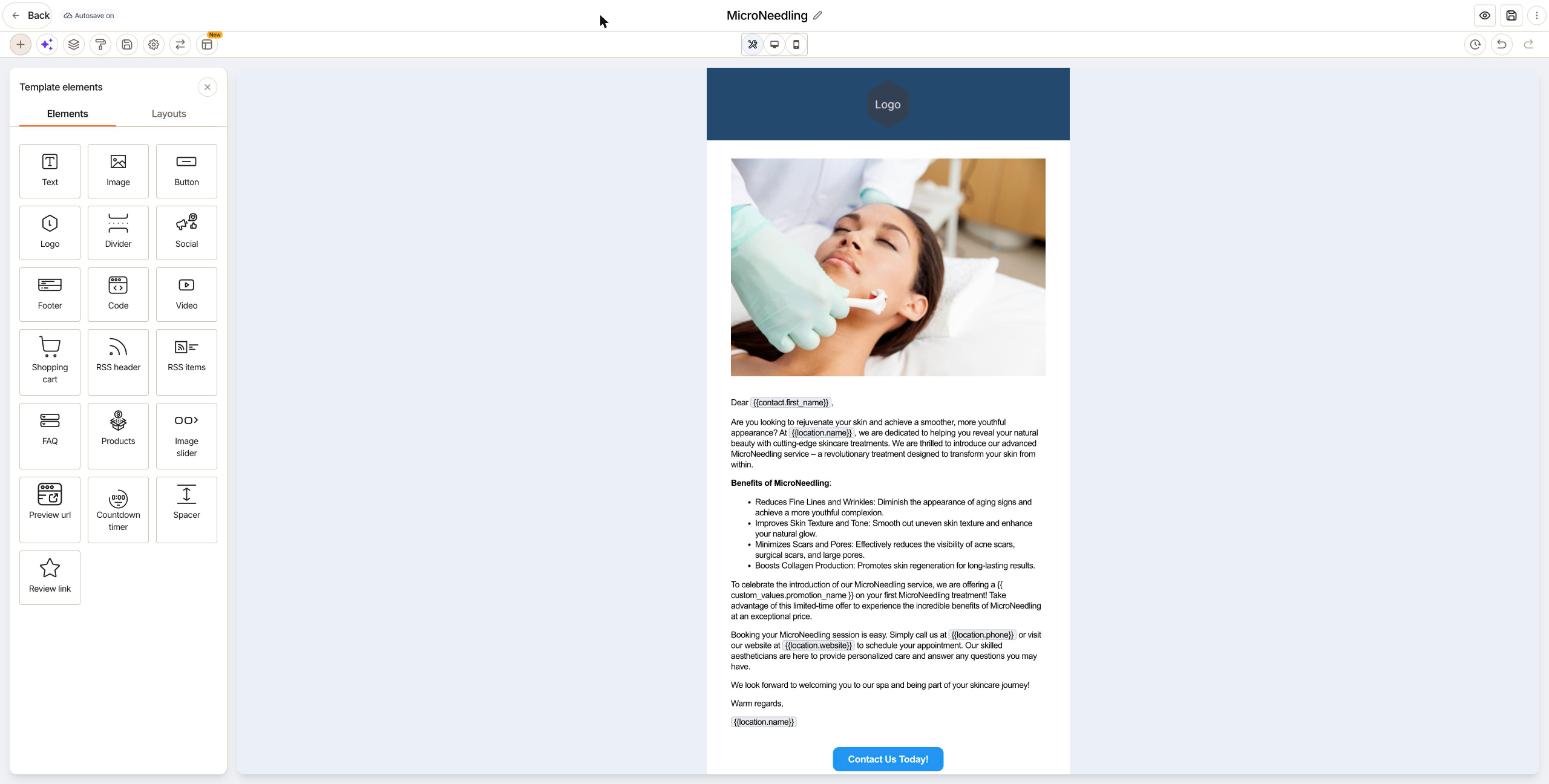
- Personalize: add fields such as
{{contact.first_name}}. Make sure the sentence still reads well for contacts who don’t have that field filled in. - Check mobile: switch between desktop and mobile at the top. Most people read email on their phone.
- Your work saves automatically while you edit.
Step 3: Set the sender, subject and recipients
Choose Send or schedule in the top right.
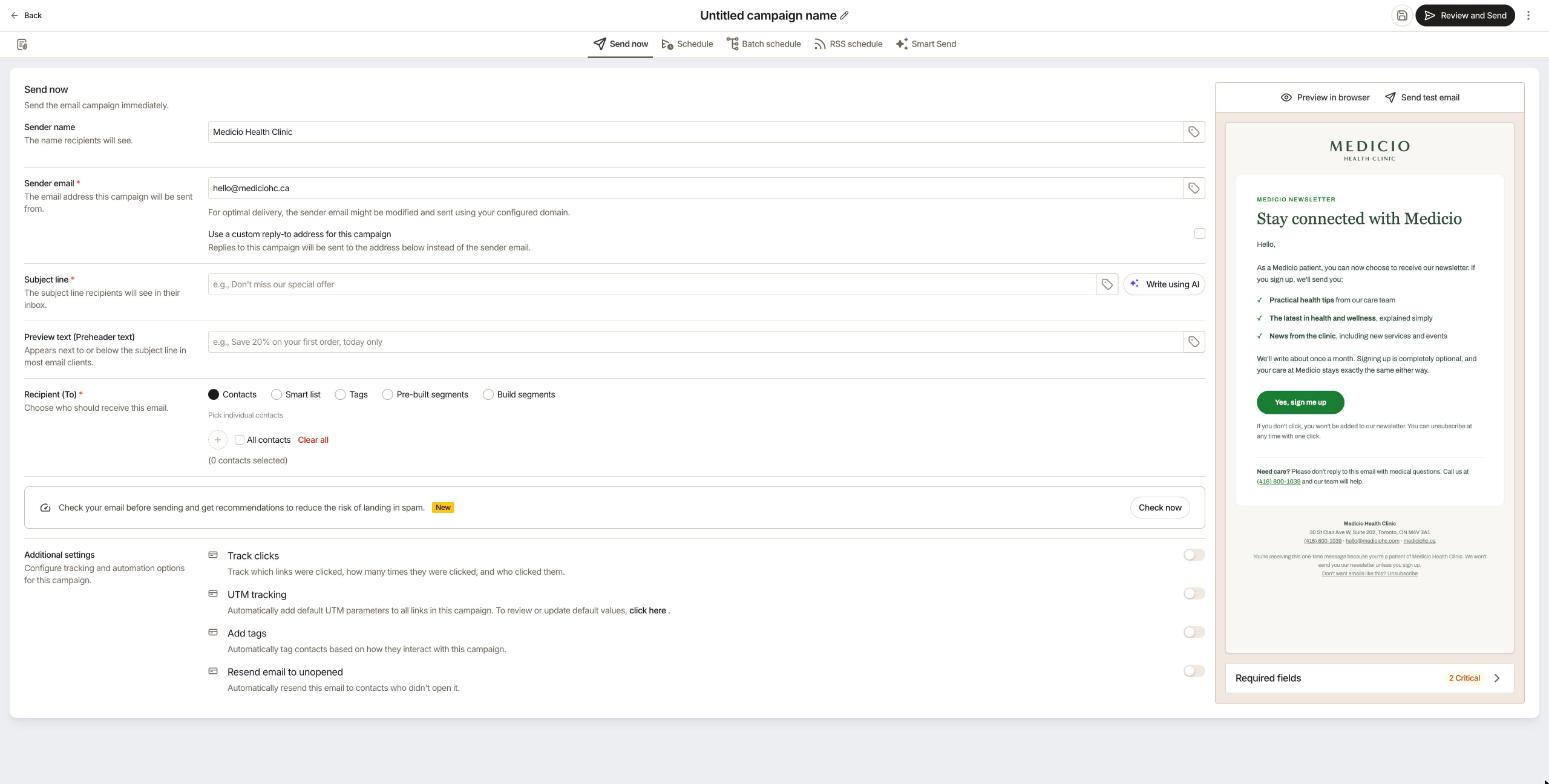
- Sender name: what people see in their inbox, such as your clinic or company name.
- Sender email: an address on your verified sending domain. Turn on Use a custom reply-to address if replies should go to a different inbox.
- Subject line and Preview text: the preview text shows next to the subject in most inboxes, so use it to add a reason to open. Write using AI suggests subject lines.
- Recipient (To): choose Contacts, a Smart list, Tags, Pre-built segments or Build segments to target a group, such as everyone tagged newsletter.
- Choose Check now to scan the email for things that could send it to spam, and fix what it flags.
- Under Additional settings, turn on Track clicks and UTM tracking to see results in your website analytics. Add tags tags contacts who open or click, so you can follow up with them later.
Step 4: Test, then send
- Choose Send test email and send it to yourself. Open it on your phone and click every link.
- Pick when it goes out, using the tabs at the top:
- Send now.
- Schedule: a date and time in your account’s time zone.
- Batch schedule: sends to a set number of contacts at a time, on the days and hours you choose. Use it for large lists and new sending domains.
- RSS schedule: sends new posts from your blog feed on a schedule.
- Smart Send: picks the best time for each contact. It unlocks automatically after your account has delivered 1,000 emails in the past 60 days.
- Choose Review and Send, check the summary, and confirm.
Results appear in Statistics within minutes.
Save a template for next time
On Marketing › Emails › Templates, choose New to save a design your team can reuse, such as your monthly newsletter. Use folders to keep templates for different brands or locations apart.
Health and science tips
- Every campaign needs an unsubscribe link and your mailing address in the footer.
- Don’t mention a contact’s condition, treatment or test results, even in a personalized field.
- Ask people to reply with questions by phone or a secure channel, not by email, if the answer would include health details.
Troubleshooting
- I can’t choose Review and Send. Open Required fields at the bottom of the preview panel. It lists what’s missing, such as the subject line or recipients.
- A first name shows as blank. Some contacts don’t have that field filled in. Fill it in on those contacts or rewrite the line so it doesn’t need it.
- Images don’t load in the test. Some inboxes hide images until you allow them. Make sure the email still makes sense without images and every image has alt text.
- The test went to spam. See Set up your sending domain, and remove spam-like phrases flagged by Check now.
- Fewer people received it than I expected. Contacts who unsubscribed, bounced before or have no email address are skipped automatically.
Still stuck? Email hello@meetohmy.com.


