Add a countdown timer to emails and pages in Synapse
Create a live countdown for a deadline, an event or a limited offer, choose fixed, recurring or per-contact timing, and add it to your emails and pages.

Intro
A countdown timer shows the time left until something happens: registration closes, a webinar starts, an early-bird price ends. It updates every time the email or page is opened, so it’s always right.
Step 1: Create a timer
- Go to Marketing › Countdown Timers and choose New.
- Pick a design, such as Minimalist or Timer Ring, and choose Continue with this template.
- Name the timer at the top, so your team can find it later.
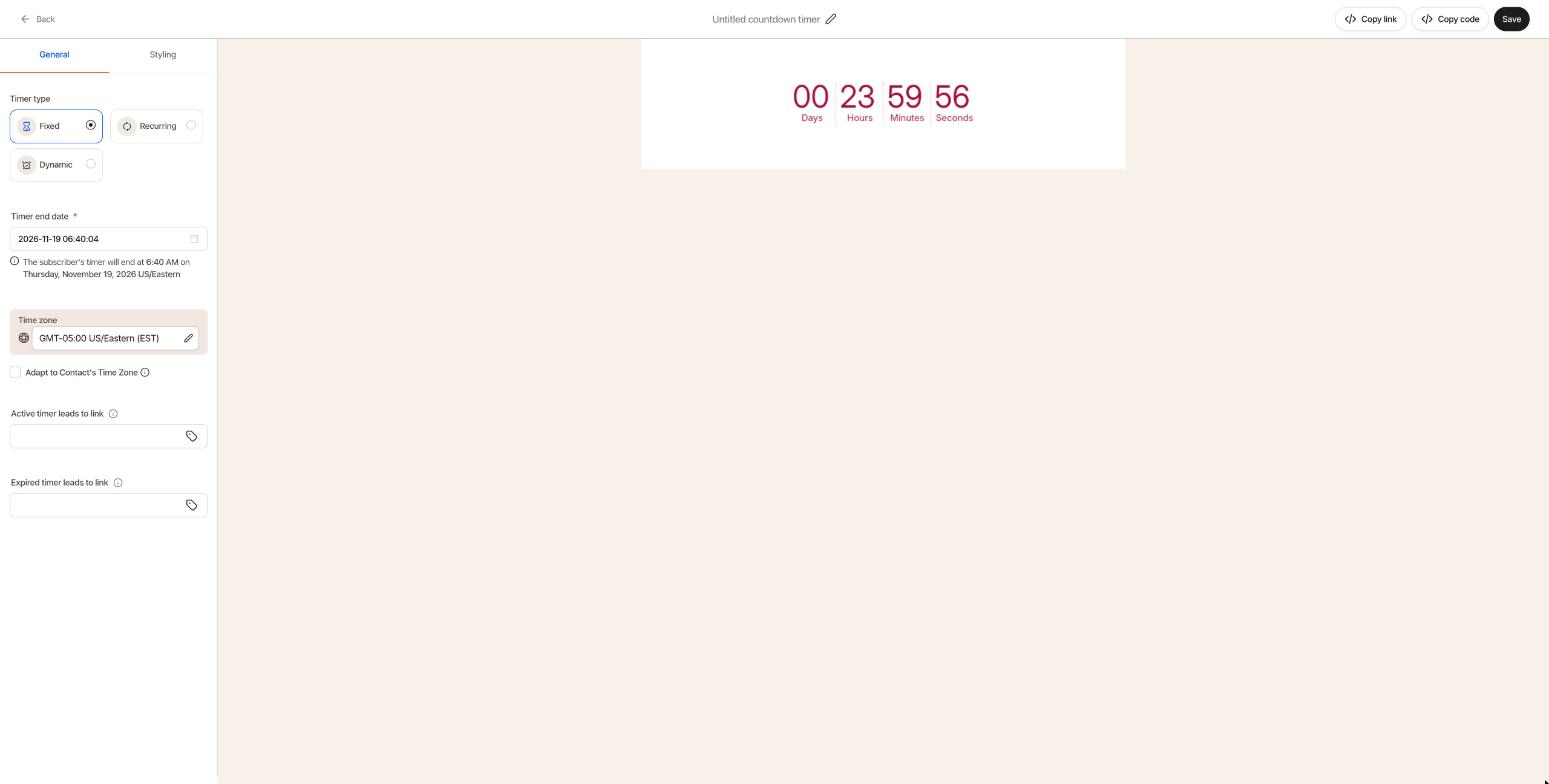
Step 2: Choose the timer type
- Fixed: counts down to one date and time for everyone. Best for events and deadlines. Set the Timer end date and Time zone, or turn on Adapt to Contact’s Time Zone.
- Recurring: repeats a countdown in cycles, for example a weekly enrollment window. Set the start date, how many times it repeats, the duration of each countdown and an optional wait between cycles.
- Dynamic: starts separately for each contact, for example 48 hours from when their email is sent. Best for personal offers in automated emails.
Step 3: Decide what happens on click and at zero
- Active timer leads to link: where people go if they click while the timer runs, such as your registration page.
- Expired timer leads to link: where they go after it ends, such as a “registration closed” or waitlist page.
Change colors, fonts and labels on the Styling tab, then choose Save.
Step 4: Add it to an email or page
- Email: in the email builder, drag the Countdown timer element into your email and pick your timer.
- Anywhere else: choose Copy code to paste the timer into a web page, or Copy link to use it as an image link.
Use it honestly
Only count down to real deadlines. A timer that resets or a deadline that keeps moving damages trust, and in health and science, trust is the product.
Troubleshooting
- The time is off by a few hours. Check the Time zone, or turn on Adapt to Contact’s Time Zone.
- The timer shows as a still image in some inboxes. Some email apps don’t animate images. It still shows the correct time left when opened.
- The dynamic timer started at the wrong moment. Check Start timer when on the timer’s settings.
Still stuck? Email hello@meetohmy.com.


